Text / Code

Text Diff

Compare two text inputs and view differences line by line.

Text Diff
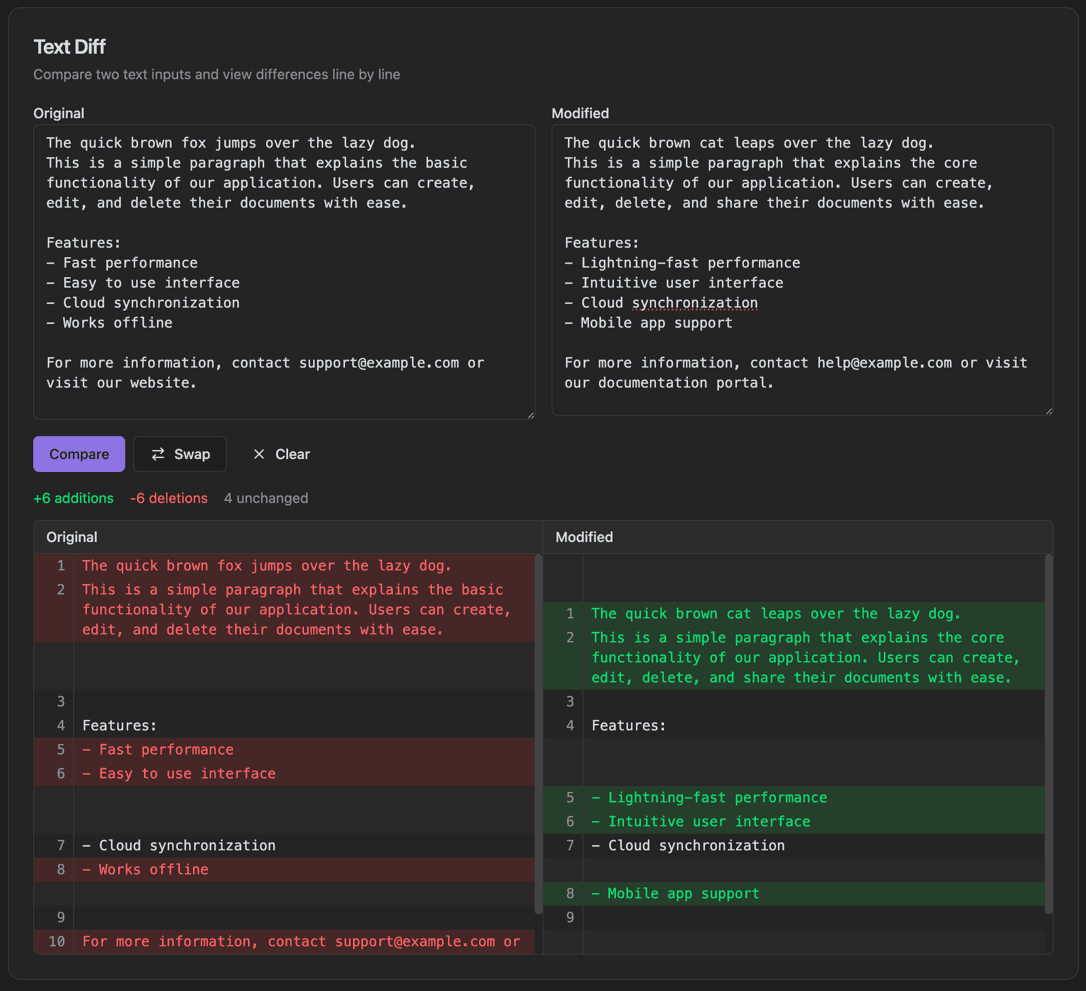
Text Diff interface showing original and modified text panels and compare button to run diff

Features

Original and Modified text panels
Compare button to run diff
Swap button to switch panels
Clear button to reset
Addition/deletion/unchanged counts
Side-by-side diff view
Line numbers in diff output
Red/green highlighting for changes

About Text Diff

Text Diff compares two text blocks and highlights the differences line by line. Paste your original and modified text, click Compare, and instantly see additions, deletions, and unchanged lines. The side-by-side view with line numbers makes it easy to spot exactly what changed.

How It Works

  1. 1

    Paste or type text in the Original panel

  2. 2

    Paste or type the changed version in the Modified panel

  3. 3

    Click Compare to see the differences

  4. 4

    Use Swap to switch the Original and Modified content

  5. 5

    Review the side-by-side diff with line numbers and highlighting

Use Cases

Code review and comparison
Comparing configuration file changes
Tracking document revisions
Debugging by comparing outputs
Verifying merge conflicts resolution
Comparing API responses

Frequently Asked Questions

What's the difference between unified and split view?
Split view shows both texts side by side with aligned lines. Unified view shows a single combined view with additions and deletions marked inline, similar to git diff output.
Can I compare code with syntax highlighting?
Yes, the tool automatically detects common programming languages and applies appropriate syntax highlighting to make code differences easier to read.
How do I ignore whitespace changes?
Toggle the 'Ignore whitespace' option to exclude spacing and indentation changes from the diff. This is useful when comparing code that may have been reformatted.

Ready to Use Text Diff?

Download PrimeUtils and get access to Text Diff plus 20+ other developer tools.