Media

YouTube Tool

Download videos and extract transcripts from YouTube.

YouTube Tool
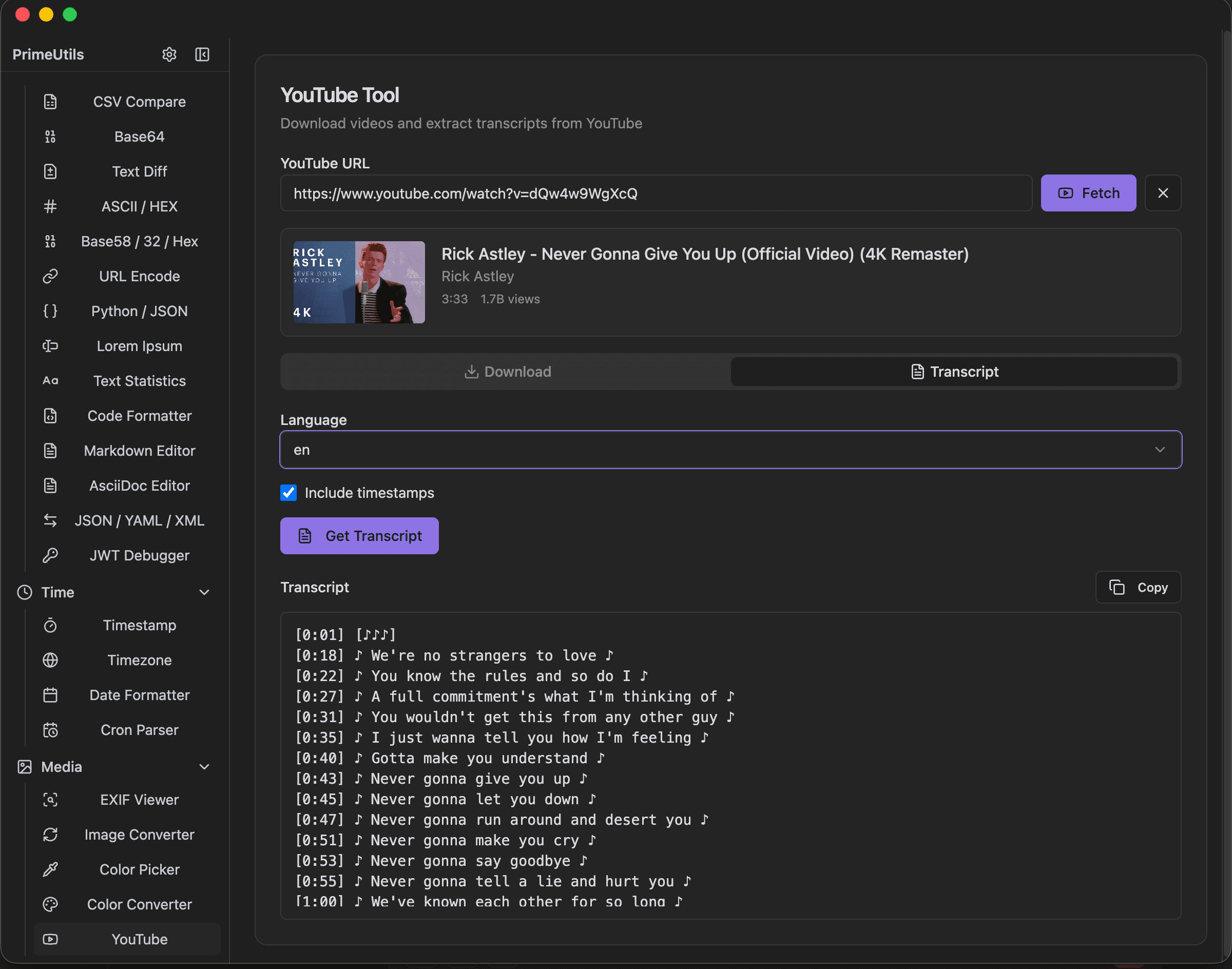
YouTube Tool interface showing youtube url input with fetch/clear buttons and video info display (thumbnail, title, channel, duration, views)

Features

YouTube URL input with Fetch/Clear buttons
Video info display (thumbnail, title, channel, duration, views)
Download/Transcript tabs
Language dropdown for transcripts
Include timestamps checkbox
Get Transcript button
Transcript output with timestamps
Copy button for transcript

About YouTube Tool

Download YouTube videos or extract transcripts with timestamps. Paste a video URL, fetch video info including thumbnail and metadata, then choose to download the video or get the transcript in your preferred language.

How It Works

  1. 1

    Paste a YouTube URL and click Fetch

  2. 2

    View video info: thumbnail, title, channel, duration, views

  3. 3

    Switch to Download or Transcript tab

  4. 4

    For transcripts: select Language and toggle Include timestamps

  5. 5

    Click Get Transcript and copy the result

Use Cases

Downloading videos for offline viewing
Extracting transcripts for note-taking
Creating video summaries
Research and content analysis
Accessibility (reading instead of watching)
Content repurposing

Frequently Asked Questions

What video qualities are available?
Quality options depend on what the video offers, typically ranging from 360p to 1080p. Higher resolutions may be available for some videos.
Are auto-generated transcripts supported?
Yes, both manual (human-created) and auto-generated transcripts can be extracted. Auto-generated transcripts are available for most videos.
Can I get transcripts in other languages?
Yes, if the video has transcripts or auto-generated captions in multiple languages, you can choose which language to extract.

Ready to Use YouTube Tool?

Download PrimeUtils and get access to YouTube Tool plus 20+ other developer tools.